




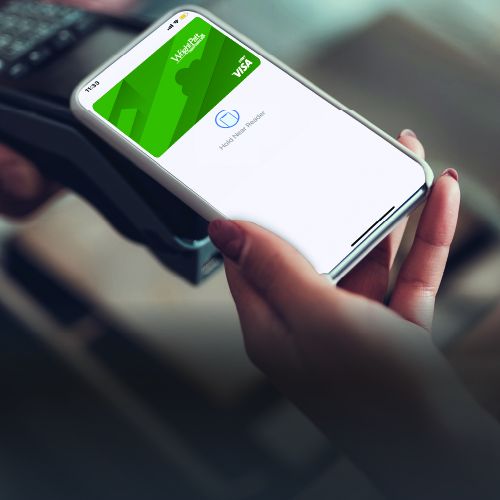
Power Up Your Mobile Wallet

A Safe Way to Tap to Pay!

Get Started with Your Mobile Wallet

Adding your Wright-Patt Credit Union® (WPCU®) Visa® debit and credit cards to a mobile wallet gives you a fast, safe and easy way to pay, whether you're shopping in-store or online!

Digital-Wallet-Landing-Page-Virtual-Wallet-Image.png

Mobile Wallet Apps

  • Samsung Pay: Add your WPCU Visa cards to Samsung Pay and pay securely using your Galaxy smartphone or watch. Only compatible with select cards, carriers and Samsung devices; see the Samsung Pay Support page for compatibility information.
  • Google Pay: No wallet? No worries! With Google Pay, you can add your WPCU Visa cards to pay directly through your device. Google Pay is a trademark of Google LLC. Payment methods shown not available in all countries or locations. See pay.google.com/about for complete list of supported devices and contact your bank or financial institution to verify supported cards.
  • Apple Pay: Available on Apple devices, Apple Pay allows you to add your WPCU Visa cards and pay quickly and securely.
  • Why Use a Mobile Wallet?

    Adding your WPCU Visa cards to a mobile wallet allows you to make fast, secure payments with the convenience of your mobile device.
  • Setting Up Your Mobile Wallet

    See how easy it is to add your WPCU Visa cards to a mobile wallet on your mobile device.
  • How to Pay with Your Mobile Wallet

    Learn how to pay with your mobile device in-store and online. Use your mobile wallet anywhere you see the Tap to Pay symbol.

Why Use a Mobile Wallet?

Adding your WPCU Visa cards to a mobile wallet allows you to make fast, secure payments with the convenience of your mobile device.

Mobile Wallet Benefits:

  • Prevent Fraud: A mobile wallet does not store your actual card number, helping you stay secure. Plus, your WPCU Visa cards are covered by Visa® Zero Liability.
  • Save Time: With the convenience of your mobile device, you can pay and get on your way faster.
  • Make Touch-Free Payments: Load your WPCU Visa cards into your mobile wallet and make contactless payments anywhere you see the Tap to Pay symbol. It's easy!

Setting Up Your Mobile Wallet

See how easy it is to add your WPCU Visa cards to a mobile wallet on your mobile device.

How to set up your mobile wallet:

  1. Locate the mobile wallet on your mobile device. Most smartphones come with a mobile wallet already installed. If not, you can download a mobile wallet app. WPCU Visa debit and credit cards are compatible with Samsung Pay, Google Pay and Apple Pay.
  2. Click "Add to Wallet" within the app and select the type of card you'd like to add. You can add multiple cards to a mobile wallet, including your WPCU Visa debit cards and credit cards.
  1. Scan your card or enter the card details manually. Once your cards are loaded, select a default payment method.

How to Pay with Your Mobile Wallet

Learn how to pay with your mobile device in-store and online. Use your mobile wallet anywhere you see the Tap to Pay symbol.

Paying with Your Mobile Wallet In-Store

  1. Look for the Tap to Pay contactless symbol at checkout. 

    Digital Wallet Tap to Pay Icon
  2. When prompted to pay, open your mobile wallet and hold your smartphone (or other mobile device) near the card reader.
  3. You may need to enter your debit card PIN or use a fingerprint or facial recognition scan to make the purchase. When the transaction is complete, you'll receive a confirmation on your device.

Paying with Your Mobile Wallet Online

  1. At the online checkout, look for your digital wallet app's logo and click it.Digital-Wallet-Landing-Page-SamsungPay.pngDigital-Wallet-Landing-Page-GooglePay.pngDigital-Wallet-Landing-Page-ApplePay.png
  2. Verify your billing and shipping information.
  3. Follow the payment prompts on your device to complete your purchase.

The Contactless Symbol is a trademark owned by and used with permission of EMVCo, LLC.

Google Pay is a trademark of Google LLC. Payment methods shown not available in all countries or locations. See pay.google.com/about for complete list of supported devices and contact your bank or financial institution to verify supported cards.

Samsung Pay is a registered trademark of Samsung Electronics Co., Ltd. 

Other company and product names mentioned may be trademarks of their respective owners. 

Samsung Pay: Only compatible with select cards, carriers and Samsung devices; see the Samsung Pay Support page for compatibility information. Samsung Pay is available on select Samsung devices.

Apple Pay is a trademark of Apple Inc., registered in the U.S. and other countries.